 Craft Apps Guide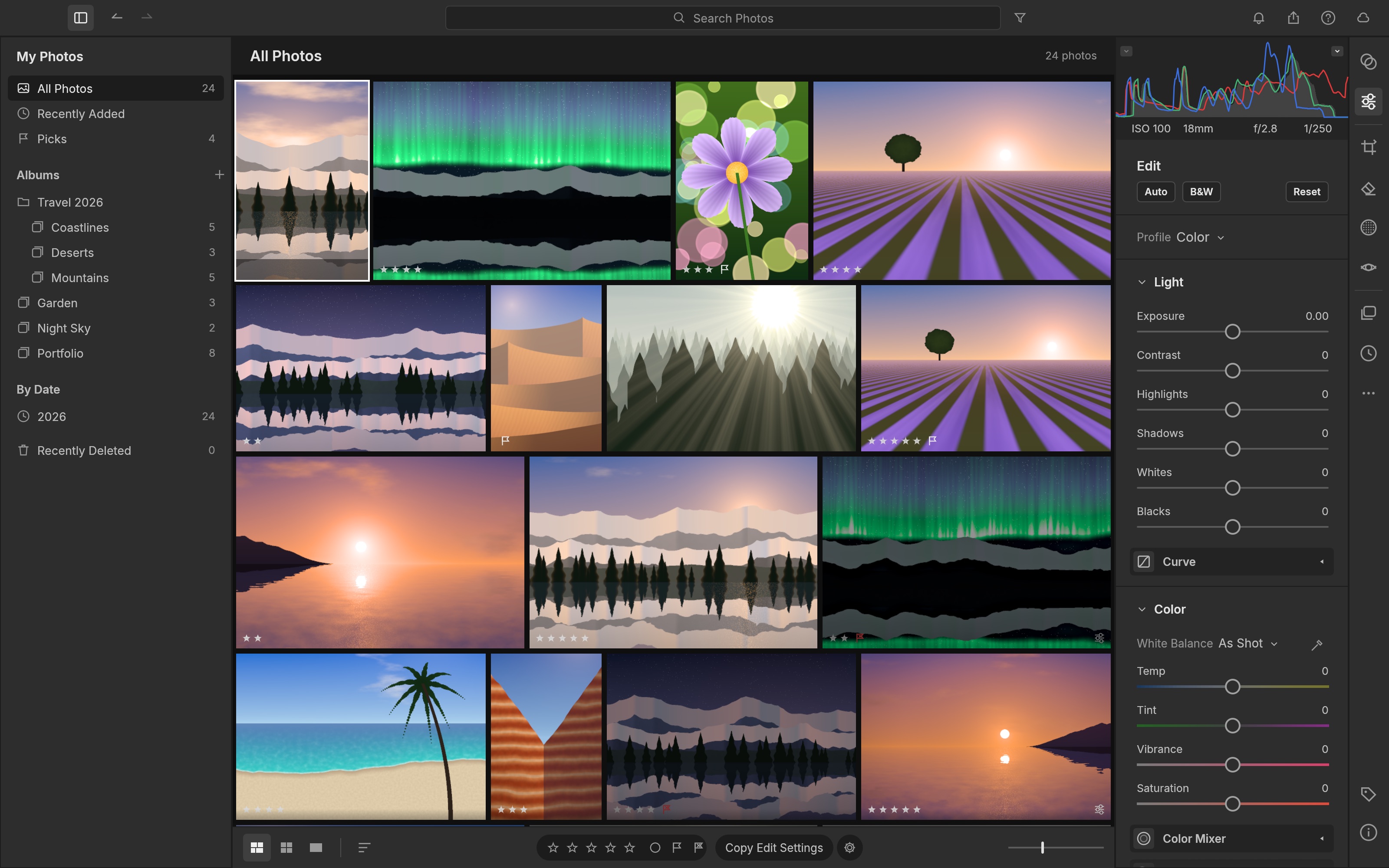
Organize a Photo Library
Browse folders and albums, rate and flag images, then filter a shoot before editing.
FREE · OPEN SOURCE · IN DEVELOPMENT (ALPHA) · WINDOWS / MACOS / LINUX
A free, open-source photo library and RAW editor. Compare it with Lightroom, edit a first photo, and keep an existing catalog separate.
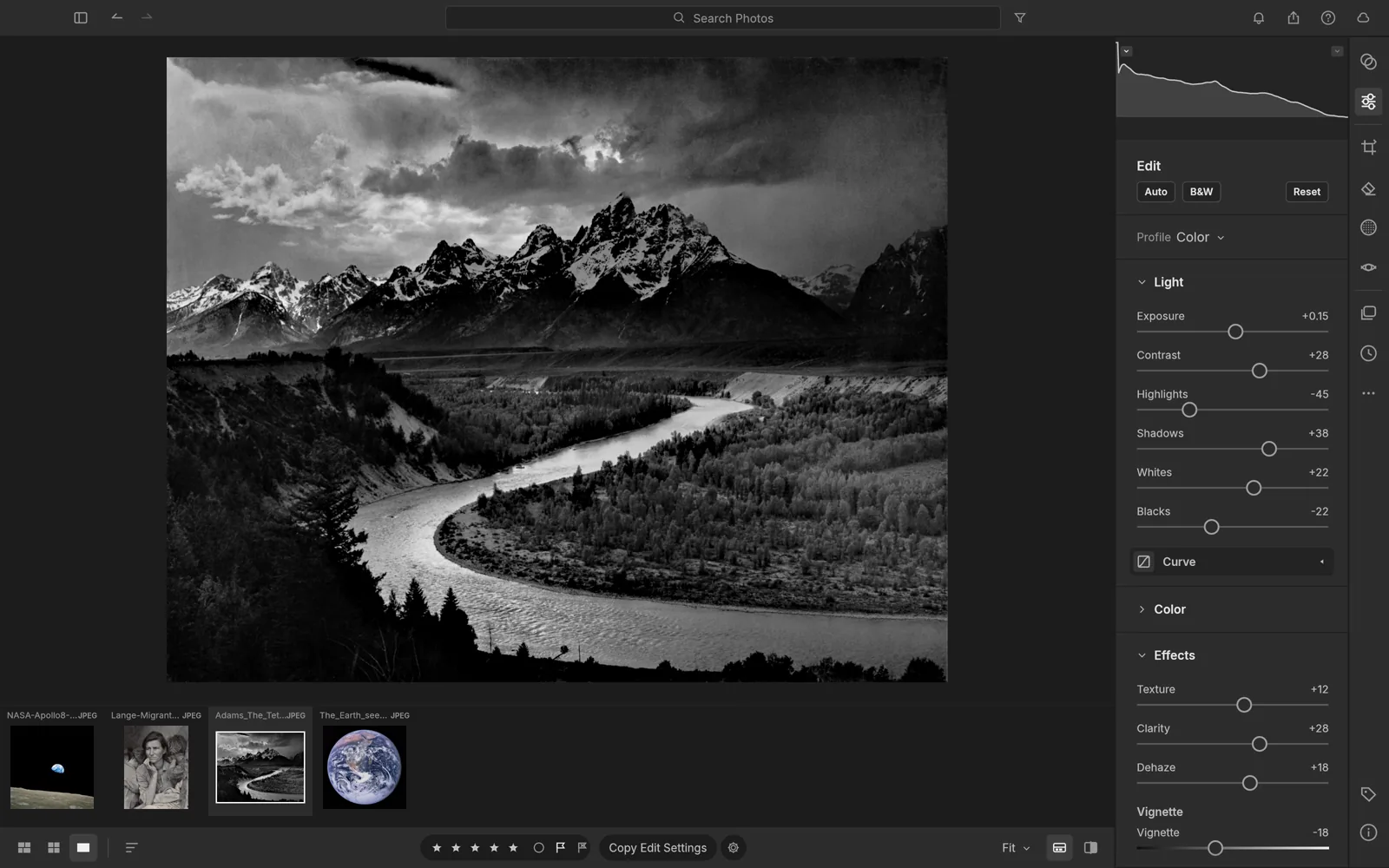
LightCraft editor interface · Official project screenshot
| What matters | LightCraft | Adobe Lightroom |
|---|---|---|
| Cost | Free; no account or subscription for the Crafting App | Paid subscription, depending on plan |
| Source code | Open source, built in Rust | Proprietary |
| Photo library | Albums, ratings, flags, search and grid view documented | Established cloud and Classic catalog workflows |
| RAW development | Non-destructive light, color, crop, masking and presets | Mature RAW editing and camera profiles |
| Camera files | Many DNG, Canon, Sony, Nikon, Fujifilm and other RAW variants; coverage varies by camera | Broad camera support through Adobe Camera Raw |
| Lightroom catalogs | Do not assume direct .lrcat import; import originals into a separate LightCraft library | Native Lightroom Classic catalog |
| Development stage | Alpha / in development | Established commercial product |
| Best fit | Local photo sorting and RAW editing without a subscription | Existing Lightroom catalogs and Adobe team workflows |
LightCraft is a free, local-first option for organizing photos and making non-destructive RAW edits. It is not a drop-in replacement for a Lightroom Classic catalog; keep your original library and use a separate LightCraft import.
Browse folders and albums, rate and flag images, then filter a shoot before editing.
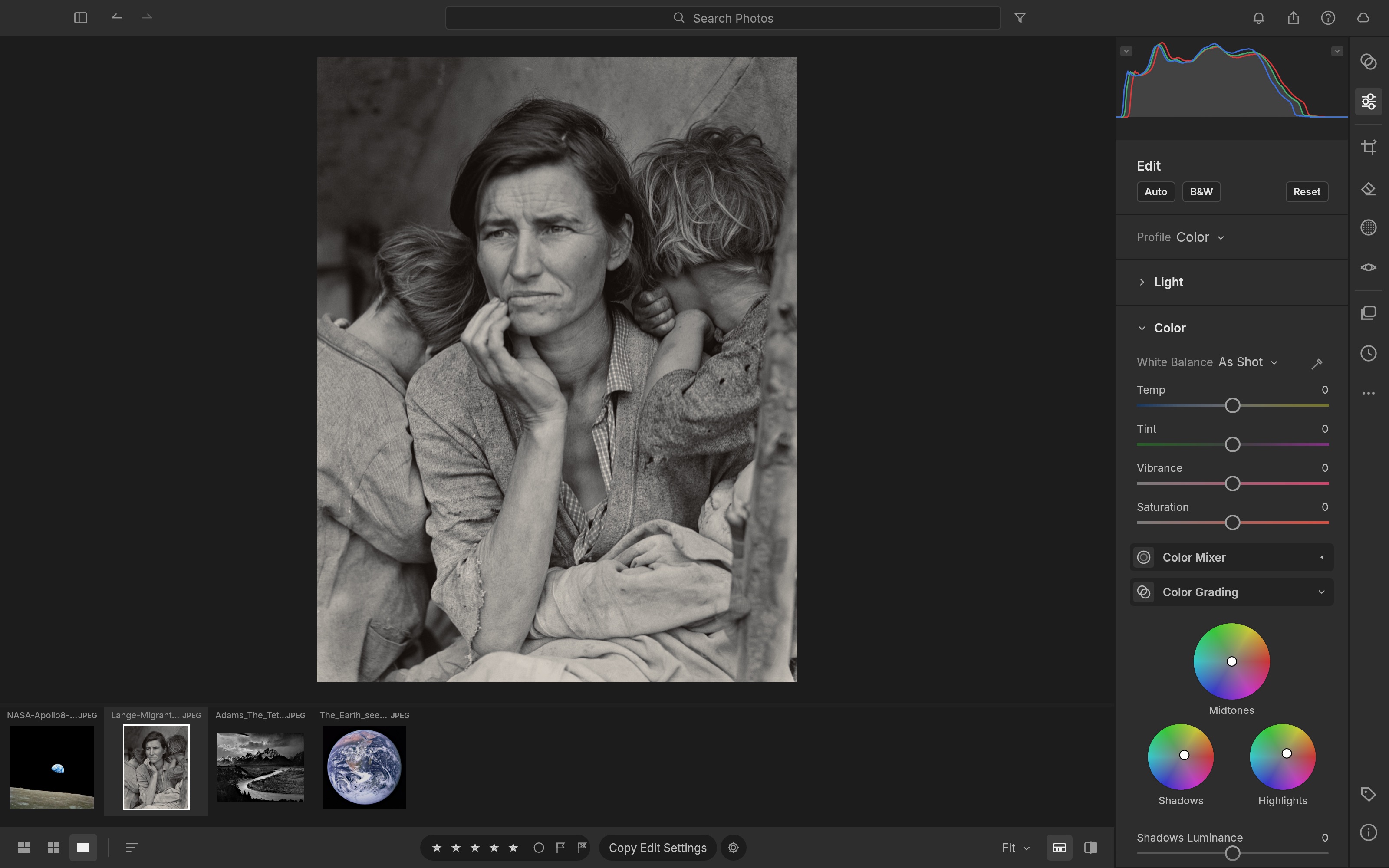
Use exposure, tone, color grading and presets while keeping the original photo unchanged.
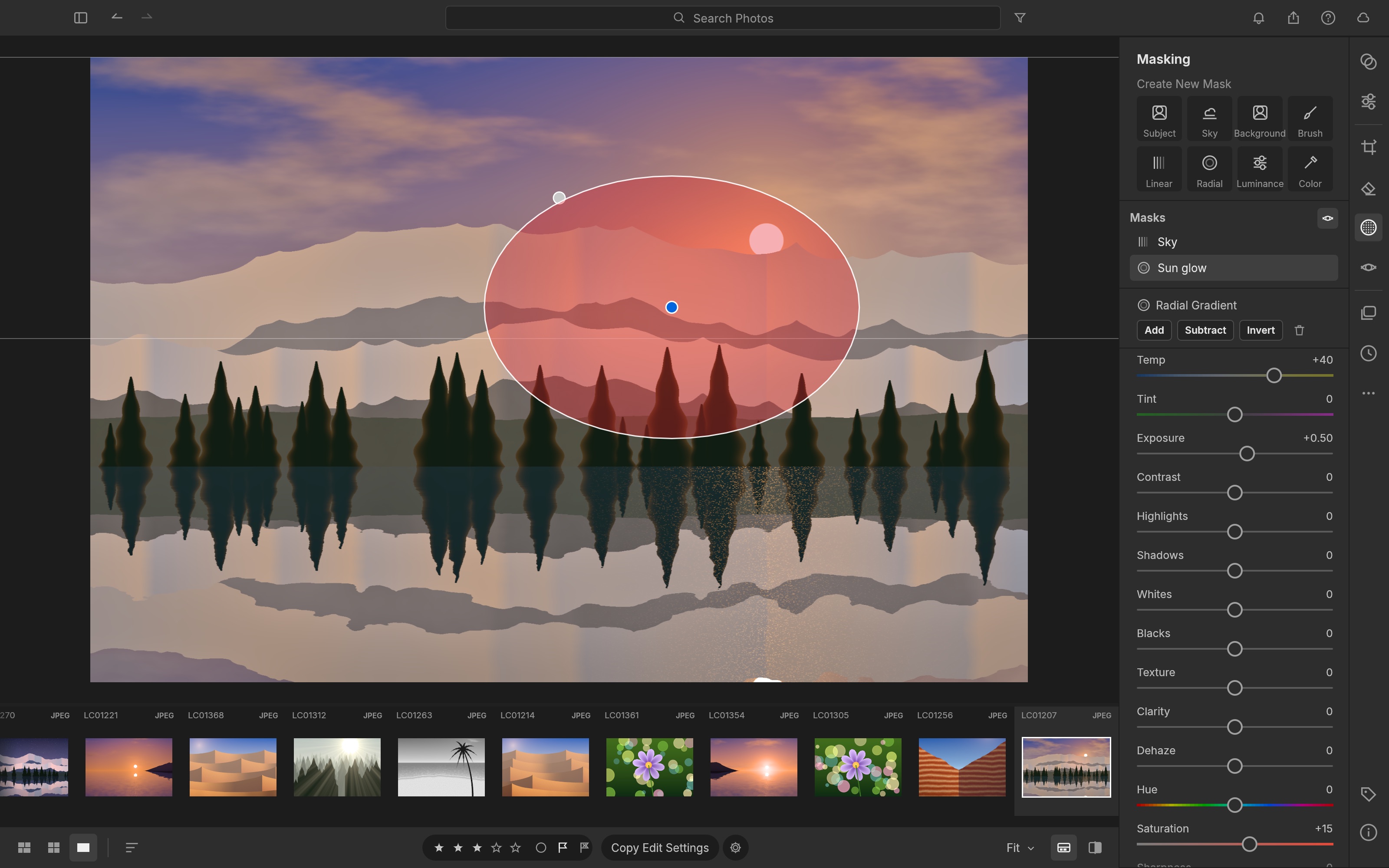
Apply brush or gradient masks to make local adjustments without changing the whole frame.
Images: official LightCraft project screenshots.
GOAL Import one RAW photo, make non-destructive edits, and export a JPEG while keeping the original untouched.
Open a new or separate LightCraft library and add a folder containing your RAW image.
The photo appears in the library grid; the source file remains in its original location.
Select the photo and open the editing view. Check the image and its histogram.
The photo is ready for adjustment without overwriting the RAW original.
Change exposure, highlights and shadows to recover detail and set the overall brightness.
The preview changes and the original file remains untouched.
Adjust white balance and crop only as needed for the subject.
The intended composition and color are visible in the preview.
Export a JPEG copy and open it in an image viewer.
The JPEG has the intended look; the RAW original is still available.
A Lightroom Classic catalog, the original photo files and exported images are different things. Build a separate LightCraft library from copies or original folders; do not replace your Lightroom catalog.
| Item | Use it for | Check before relying on it |
|---|---|---|
| Camera RAW / DNG | Keep the source image for non-destructive editing | Check your camera model and RAW variant in the official compatibility list |
| LightCraft library | Store LightCraft's organization and edit history | Reopen the library and confirm ratings, edits and folders |
| Lightroom .lrcat | Keep your existing Lightroom Classic catalog | Do not assume direct catalog import or identical edits |
| XMP sidecars | Exchange some metadata and develop settings | Inspect appearance and metadata after import |
| JPEG / TIFF / PNG | Share finished images | Check crop, color, dimensions and metadata policy |
LightCraft does not make an existing Lightroom Classic library automatically interchangeable. Keep the .lrcat catalog and originals safe while building a separate LightCraft workflow.