Adjust Photos
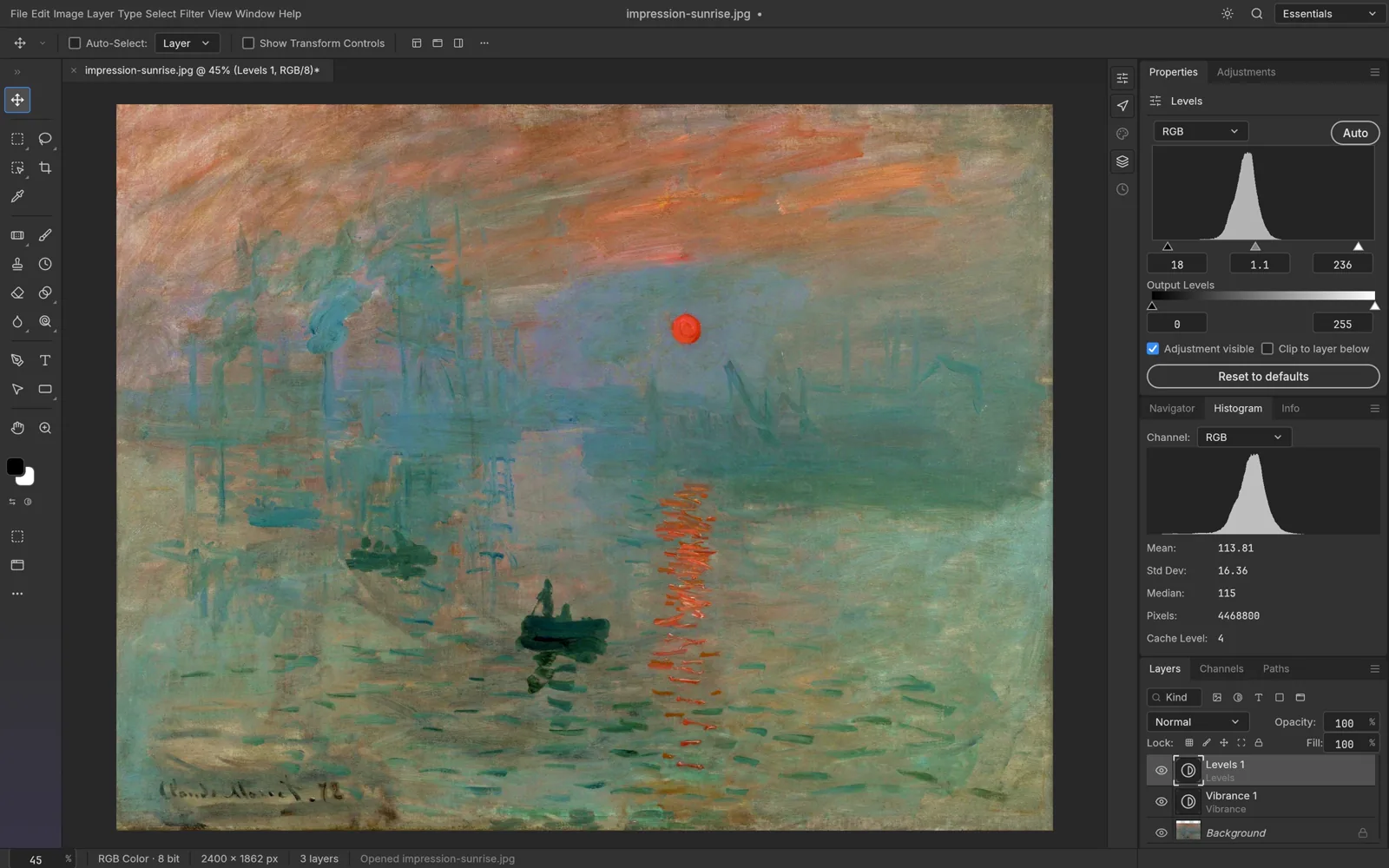
Adjust levels, curves and color using editing controls and adjustment layers. Preview changes on the canvas before exporting.
FREE · OPEN SOURCE · EARLY ALPHA · WINDOWS / MACOS / LINUX
A free, open-source image editor for basic photo work and PSD exploration. See how its current tools compare with Photoshop and where file compatibility matters.
PhotoCraft editor interface · Official project screenshot
| What matters | PhotoCraft | Adobe Photoshop |
|---|---|---|
| Cost | Free to use | Paid subscription |
| Source code | Open source | Proprietary |
| Basic image editing | Crop, adjustments, text and other editing tools are documented | Established professional editing workflows |
| Layers and masks | Layered editing and masks documented | Mature editing workflow |
| PSD documents | Opens and saves layered PSD/PSB; inspect complex files before editing | Native Photoshop document workflow |
| Advanced generative tools | No Photoshop-equivalent generative workflow listed in official documentation | Integrated generative editing tools |
| Development stage | Early alpha | Established commercial product |
| Best fit | Learning, basic editing and non-critical projects | Complex Adobe-based professional workflows |
PhotoCraft is free, but it is not yet a full replacement for Photoshop. Explore it for basic editing and personal projects. If you depend on complex PSDs or a stable production workflow, keep your existing tools until you have checked copies of your files.
Adjust levels, curves and color using editing controls and adjustment layers. Preview changes on the canvas before exporting.
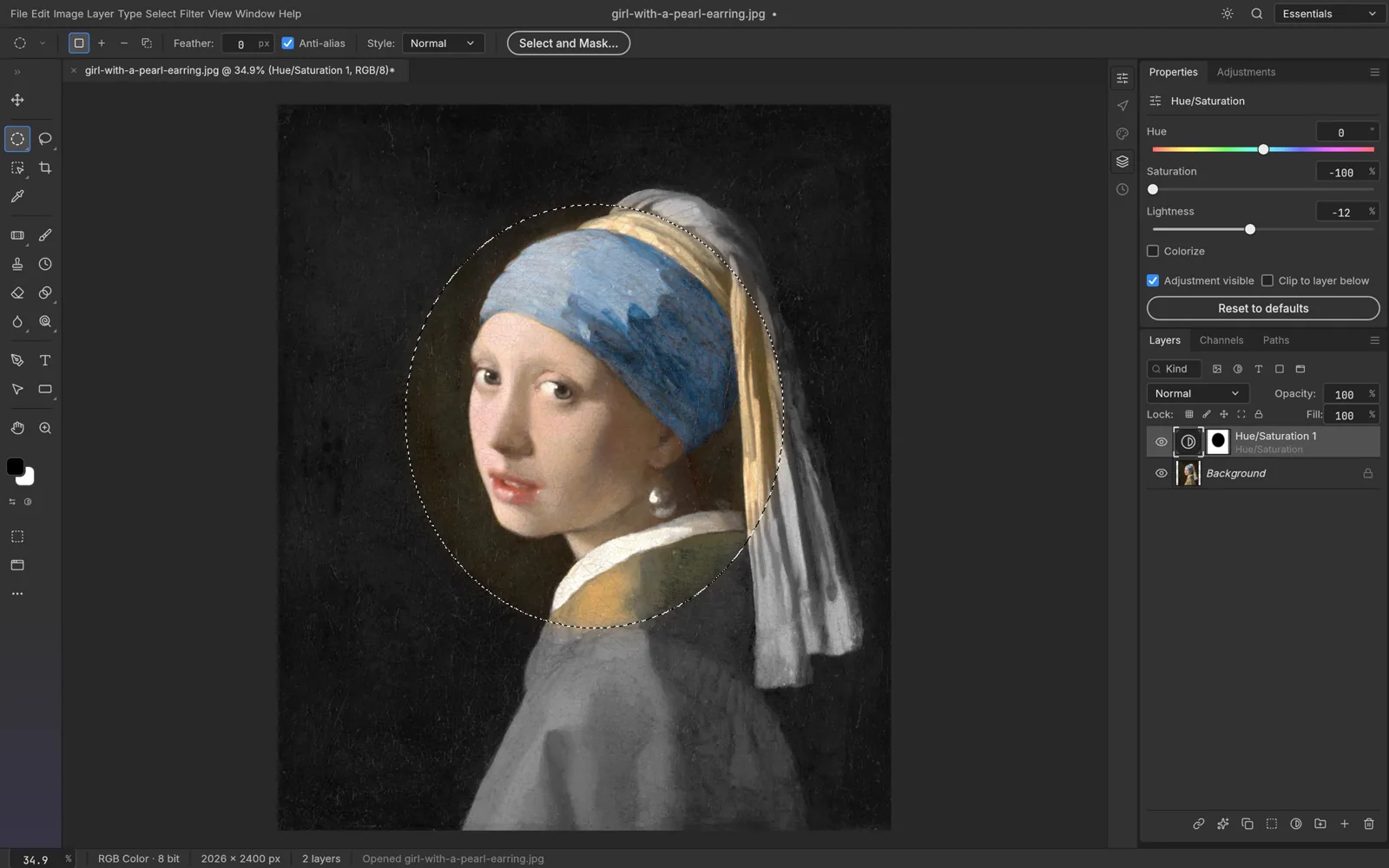
Keep elements on separate layers and use masks to control where edits appear. Check layer visibility and the final image as you work.
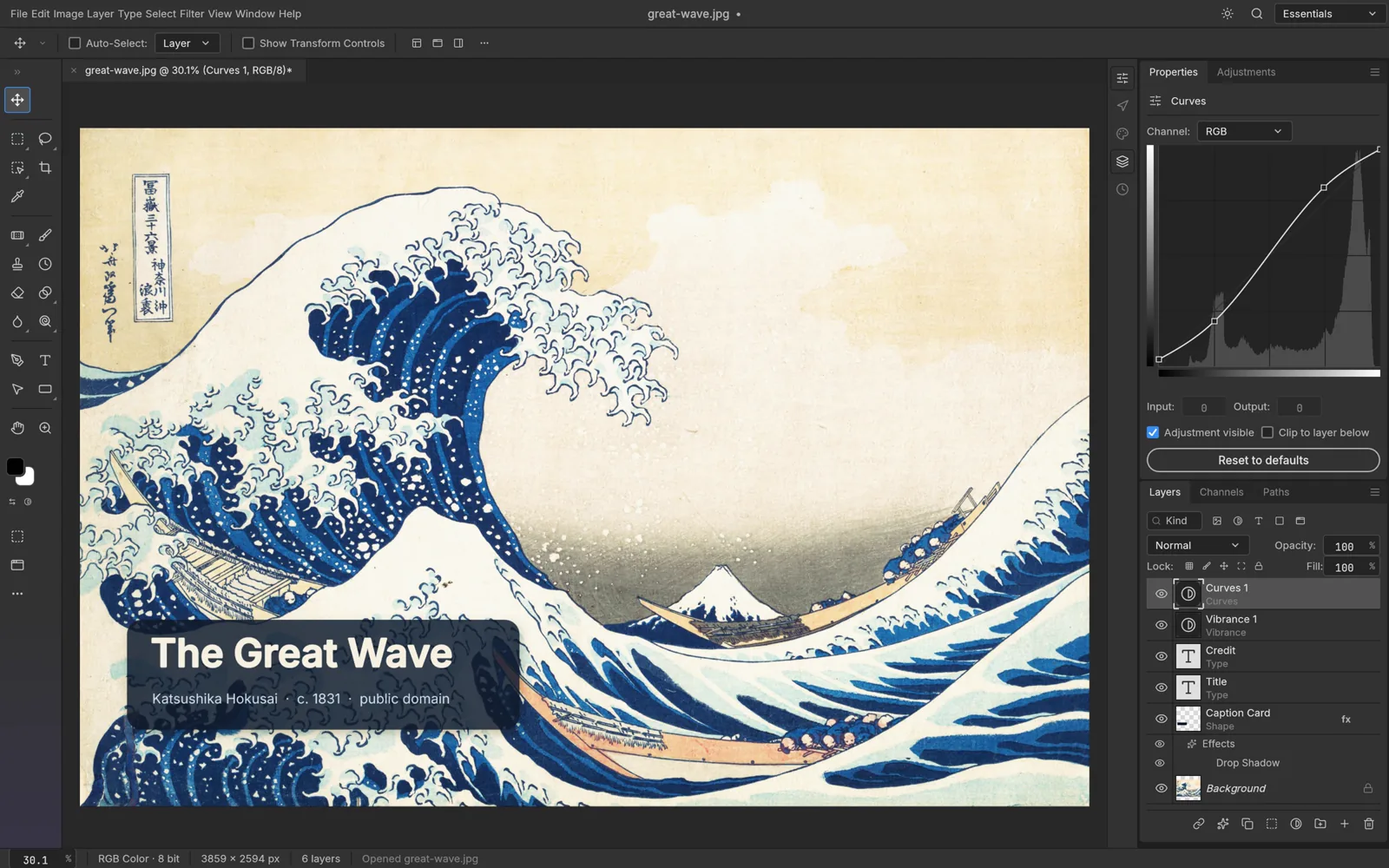
Add titles or captions on separate text layers. Adjust their position and appearance without painting text into the original photo.
Images: official PhotoCraft project screenshots.
GOAL Open a photo, crop it, add a text caption on a separate layer, save an editable copy and export a PNG.
Choose File → Open… and select a JPG or PNG photo. Locate it in the Layers panel.
The photo appears on the canvas and its layer appears in the document.
Choose the Crop tool, adjust the frame around your subject and apply the crop.
The outer area is removed from the edited image, rather than hidden by zoom.
Use the Type tool to add a short title. Adjust size, color and position.
The caption is visible on a separate text layer.
Move the text layer as needed. Use File → Save As… to keep an editable working copy.
A working file exists with the layers needed for later edits.
Choose File → Export → Export As…, select PNG, then open the result in an image viewer.
The exported PNG shows the intended crop, caption and colors.
Work on a copy of your Photoshop document. A successful import does not guarantee an unchanged round trip for text, masks, effects or complex layers.
Duplicate the source file and keep the original unchanged.
You have an untouched original and a separate copy.
Use File → Open… to open the copy in PhotoCraft.
The document loads and the layer structure can be inspected.
Inspect text, layers, masks, blends and effects before making changes.
You know which elements can be edited and which look different.
Edit a non-destructive element and save the file under a new name.
The original remains untouched and the change is saved separately.
Reopen your saved copy and compare it with the original; optionally export PNG.
Your intended edits persist and the appearance is acceptable.
| Check | What to look for | Warning signs |
|---|---|---|
| Layer structure | Important layers and groups remain recognizable | Missing, merged or reordered layers |
| Editable text | Text stays visible and editable | Missing fonts, shifted text or flattened layers |
| Masks and blends | Cutouts and transparency resemble the original | Halos, blending or transparency changes |
| Effects and adjustments | Important styling is preserved | Missing shadows, wrong color or filters |
| Save and reopen | Edited copy opens with intended changes | Errors, missing edits or unexpected flattening |
| Open in another editor | Output remains usable for your workflow | Photoshop rejects the file or changes its appearance |
Keep your original PSD unchanged. Successful import does not guarantee a lossless round trip, especially with complex documents.