Draw and Edit Vector Paths
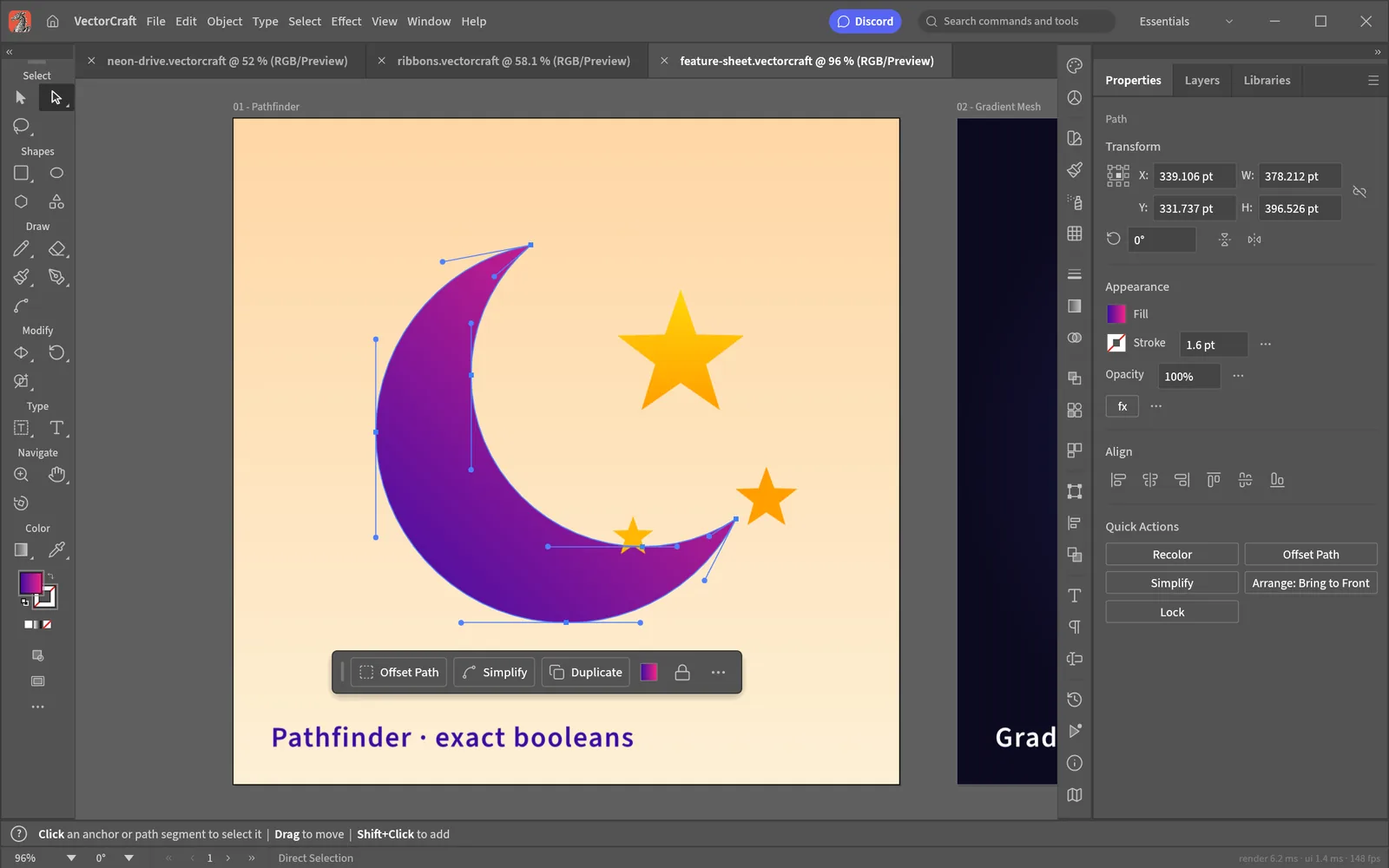
Use the Pen and selection tools to create shapes, adjust Bézier anchors and refine curves. Paths remain editable vector objects.
FREE · OPEN SOURCE · IN DEVELOPMENT (ALPHA) · WINDOWS / MACOS / LINUX
A free, open-source vector editor for SVG artwork, paths, shapes and layers. Compare it with Illustrator and check the limits of .ai file exchange.
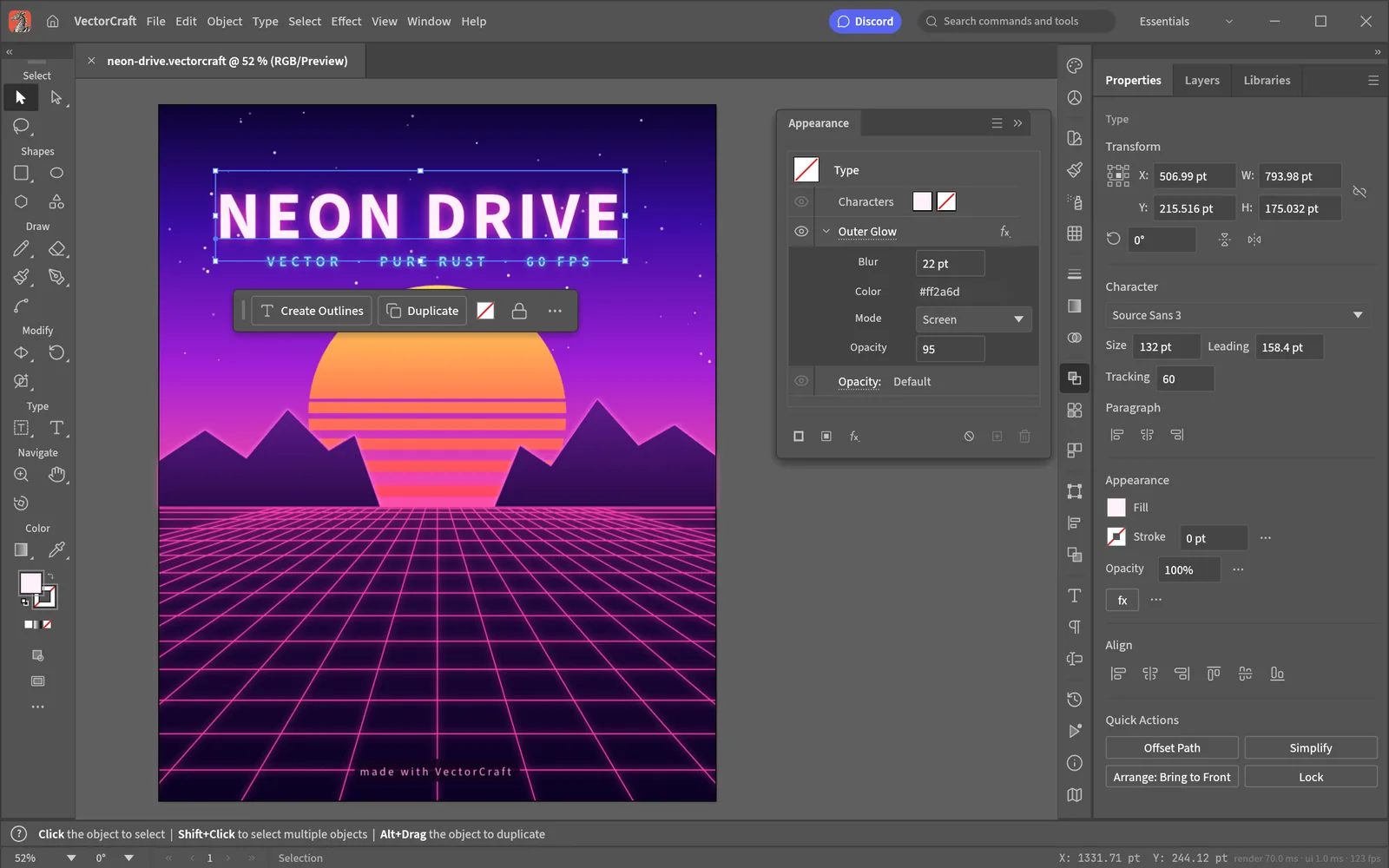
VectorCraft editor interface · Official project screenshot
| Question | VectorCraft | Adobe Illustrator |
|---|---|---|
| Price | Free | Paid subscription; varies by plan and region |
| Source code | Open source (MIT or Apache-2.0) | Proprietary software |
| Vector drawing | Pen tools, shapes, paths and layers are documented | Mature professional vector editing tools |
| SVG editing | SVG import and export are documented | SVG import and export |
| Illustrator .ai files | PDF-compatible .ai support, with editing and layer-fidelity limits | Native .ai workflow |
| Advanced features | Many available, but not at full Illustrator parity | Established professional tools and ecosystem |
| Development stage | In development / alpha | Mature commercial product |
| Best fit | Free vector editing, SVG design and learning | Reliable .ai exchange and established workflows |
VectorCraft is worth exploring if you want a free vector editor or need to create SVG artwork. If your work depends on exact Illustrator .ai round trips, plug-ins or a tightly controlled workflow, keep Illustrator or verify copies of your files before switching.
Use the Pen and selection tools to create shapes, adjust Bézier anchors and refine curves. Paths remain editable vector objects.
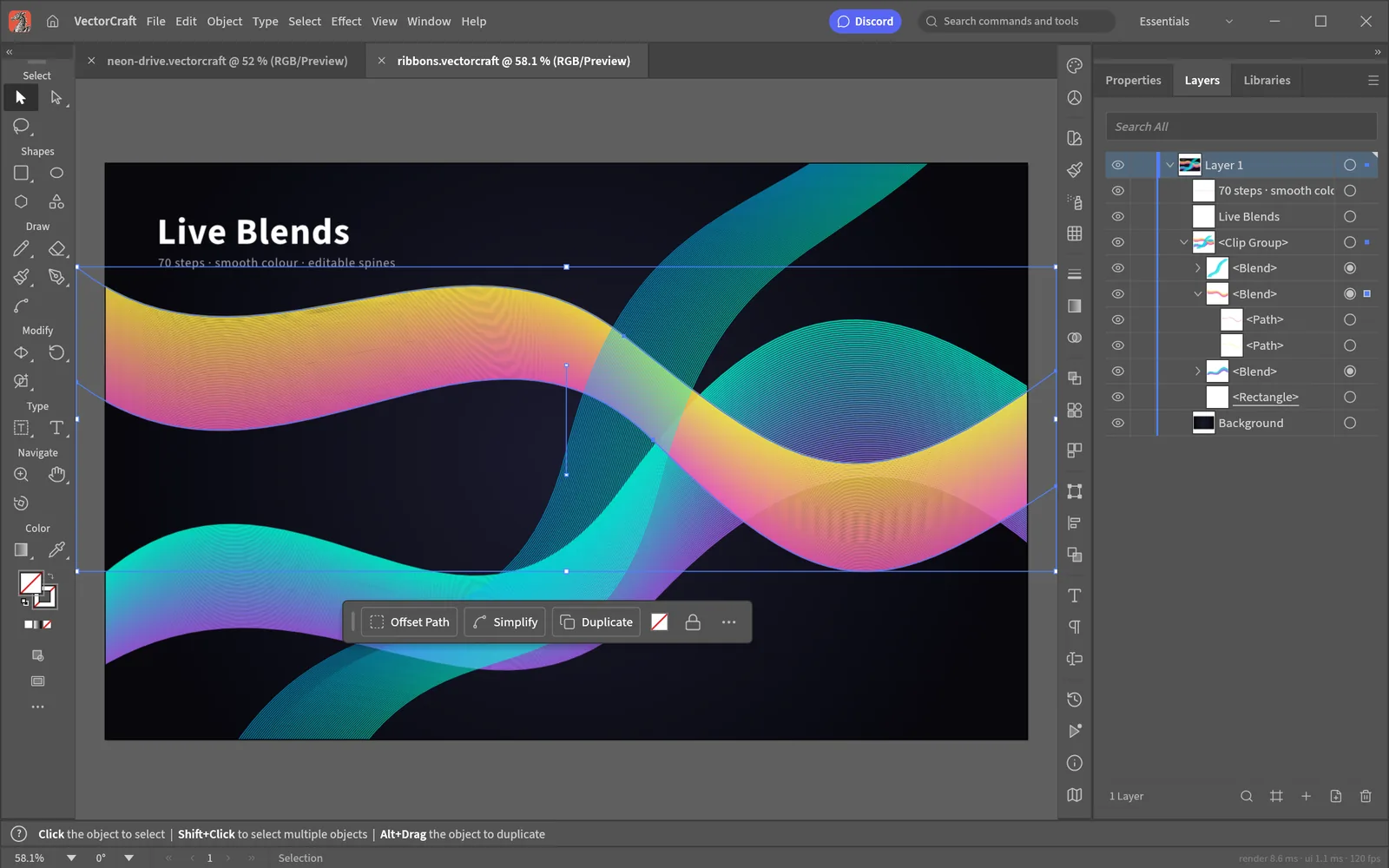
Build designs from multiple objects, change fills and strokes, and use layers to keep artwork organized.
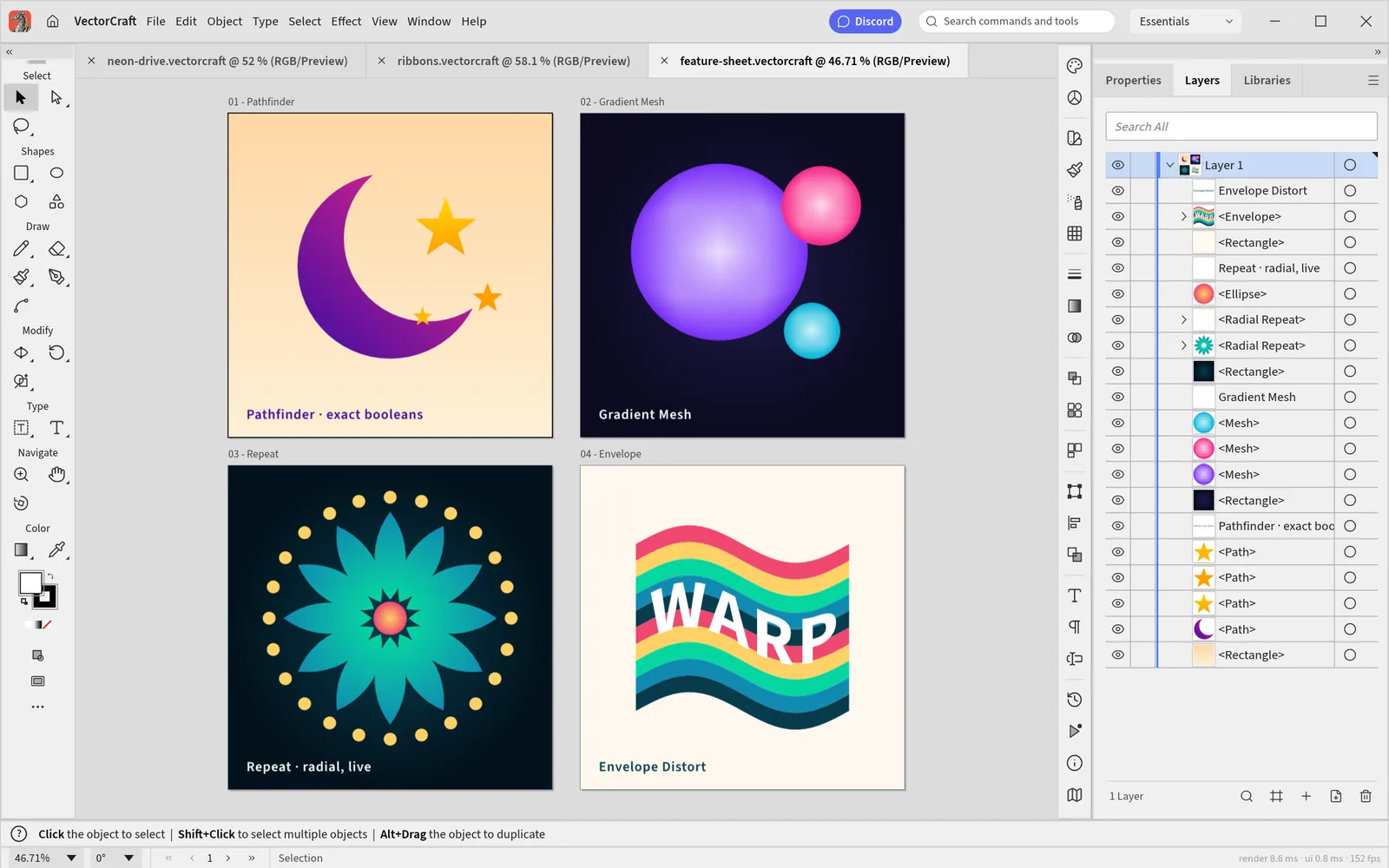
Work with artboards and export designs in SVG or raster formats such as PNG for different output sizes.
Images: official VectorCraft project screenshots.
GOAL Make a simple two-shape vector icon, save an editable VectorCraft copy, and export an SVG you can reopen.
Use File → New… and start with a blank artboard; a square is convenient for a basic icon.
A blank artboard is visible and ready for drawing.
Use Rectangle or Ellipse and drag on the artboard. Select to move or resize it.
The shape remains an editable vector object.
Draw a second shape with a different size and position it to form a simple symbol.
You can select and move the two shapes separately.
Change one shape's Fill. Use File → Save or Save As… to keep a .vectorcraft copy.
The project is saved and individual shapes remain editable.
Use File → Export → Export As SVG…; reopen the saved SVG in a browser or viewer.
The SVG displays the intended shapes and colors.
SVG, native project files and Illustrator documents serve different purposes. Keep the original .ai file before testing compatibility.
| File type | What VectorCraft documents | What to check yourself |
|---|---|---|
| SVG / SVGZ | Can be opened and exported | Text, paths, masks, gradients and sizing after reopen |
| .vectorcraft | Native editable document | Shapes and layers remain editable after save/reopen |
| Illustrator .ai | PDF-compatible import/export, with limits | Layers, text and effects; do not assume full round trip |
| PDF / EPS | Documented import/export capabilities | Fonts, clipping, page dimensions and vector objects |
| PNG / JPEG / WebP | Raster output for sharing | Pixel dimensions and whether a separate SVG is needed |
Important for Illustrator users: PDF-compatible .ai support does not guarantee native Illustrator editing data or exact layer fidelity. Verify copies before production handoff.