 Craft Apps Guide
Lay out screens
Use frames and auto layout to arrange text, images and controls while keeping spacing editable.
FigCraft is ArtCraft's free, open-source app for interface design and prototypes. Build screens with frames, auto layout and reusable components, then save your work as a .figcraft project. If you bring in a Figma .fig file, check the imported result before continuing.
Free · Open Source · Early Alpha · Windows / macOS / Linux / Web
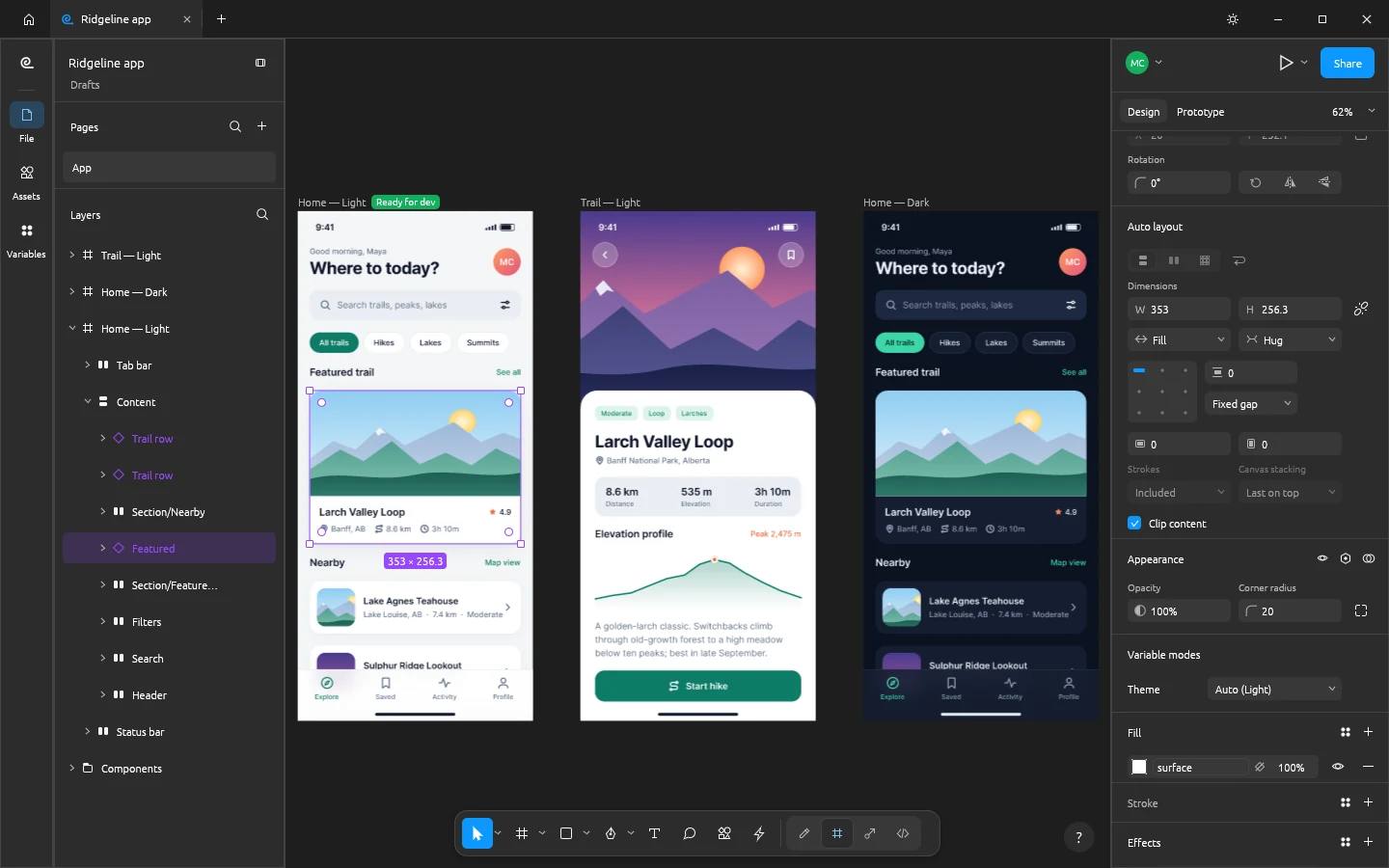
Official project screenshot
Use frames and auto layout to arrange text, images and controls while keeping spacing editable.
Turn repeating elements into components and variants, then update instances from one source.
Connect screens as a prototype and preview the path someone would take through the interface.
| What matters | FigCraft | Figma |
|---|---|---|
| Main task | Interface design and prototyping in a native Rust app | Interface design and team collaboration |
| Working file | Local .figcraft project | Figma design file; .fig copies can be exported |
| Existing .fig file | Opens on a best-effort basis; inspect the result | Native Figma file workflow |
| Collaboration | Early live-session feature documented by the project | Established team-sharing workflow |
| Plugins | Own WebAssembly plugin system | Established Figma plugin ecosystem |
FigCraft is useful for exploring a local interface-design workflow. It does not promise that an existing Figma project, team setup or plugin will transfer unchanged.
Goal: Create two linked screens with a reusable button, save the editable project, and export one preview image.
Start a new design and add a frame for the first screen.
an editable screen boundary is visible on the canvas.
Place a heading, a short sentence and a button inside the frame. Use auto layout to control their spacing.
moving or editing one item keeps the group organized.
Make the button a component and place an instance on a second frame.
both screens use the same button design.
Add a prototype connection from the first button to the second frame and preview the flow.
the button opens the second screen in the preview.
Save the .figcraft project and export a PNG preview.
the editable file and a shareable image are both available.
| File | How to use it |
|---|---|
| .figcraft | Keep the editable FigCraft source file. |
| .fig | Import a Figma copy on a best-effort basis; check text, frames, components, variables and prototype links after opening. Keep the original file. |
| SVG / PNG / JPG / WebP / PDF | Use the project's documented import/export routes for assets and previews; an exported image is not an editable design source. |
If you already have a Figma project: use Figma's File > Save local copy to get a .fig file when the file owner allows copying; keep the original; open the copy in FigCraft; check text and fonts, frame positions, component instances, variables and prototype links; save a new .figcraft project only after inspecting the result. This is a file-check workflow, not a promise that FigCraft reproduces every Figma feature.