 Craft Apps Guide
Windows
.msi installer or portable .zip; choose x64, ARM64 or x86.
ArtCraft Launcher is the official app manager for the Crafting Apps. Use it to install, open and update PhotoCraft, VectorCraft and the rest of the suite from one place. Start with the installer that matches your computer, then add your first app.
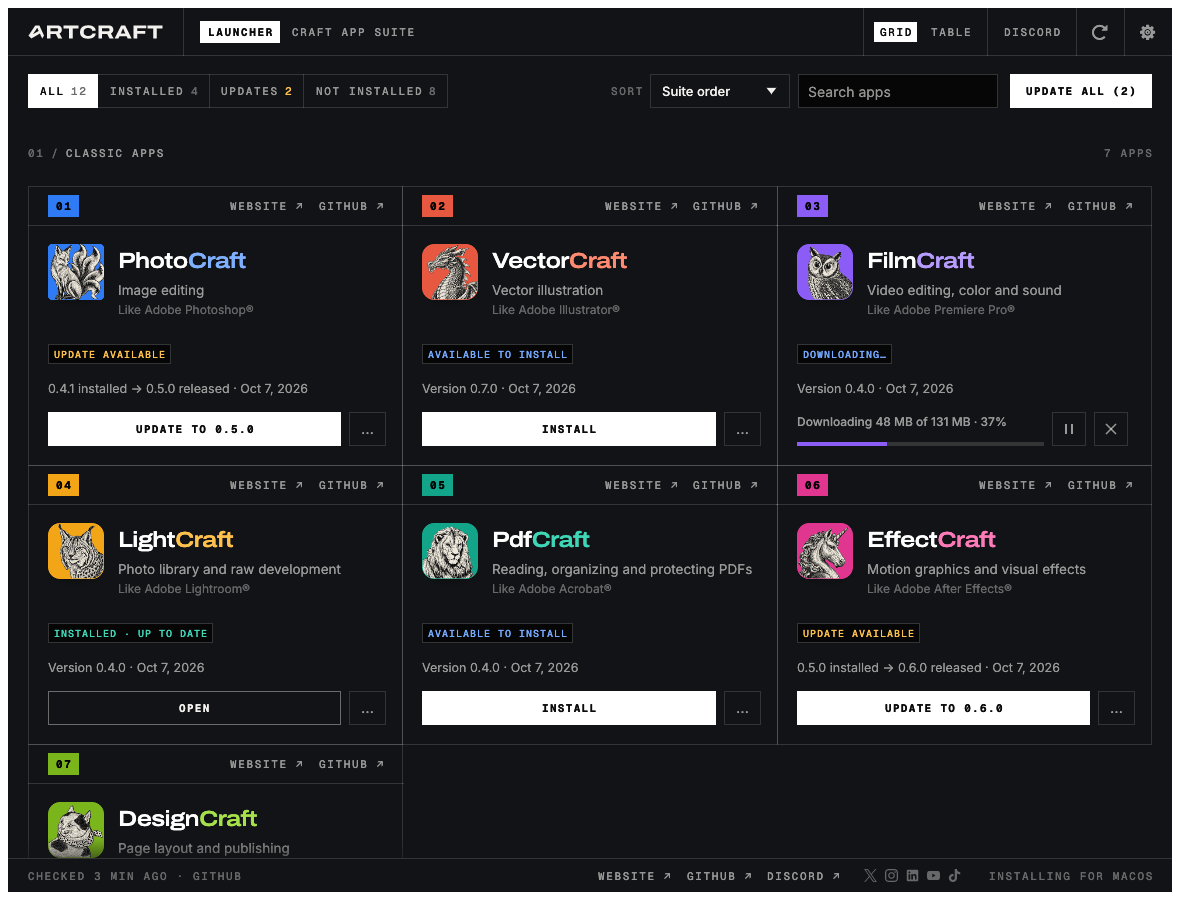
Official project screenshot
.msi installer or portable .zip; choose x64, ARM64 or x86.
Universal .dmg for Apple silicon and Intel Macs.
AppImage, DEB, RPM or Flatpak for your distribution.
| System | Install steps | Result |
|---|---|---|
| Windows | Open the .msi and complete the installer. | Launcher appears in your apps list. |
| macOS | Open the .dmg and move Launcher to Applications. | Launcher opens from Applications. |
| Linux | Install the DEB/RPM/Flatpak or run AppImage. | Launcher starts from your app menu or file. |
GOAL Use Launcher to install PhotoCraft, open it and find the update control later.
Start ArtCraft Launcher from your computer.
The app list is visible.
Choose PhotoCraft from the Grid or Table view.
The correct app details are shown.
Select the available Install action.
The app moves to installed state.
Use the Open action in Launcher.
PhotoCraft starts on your computer.
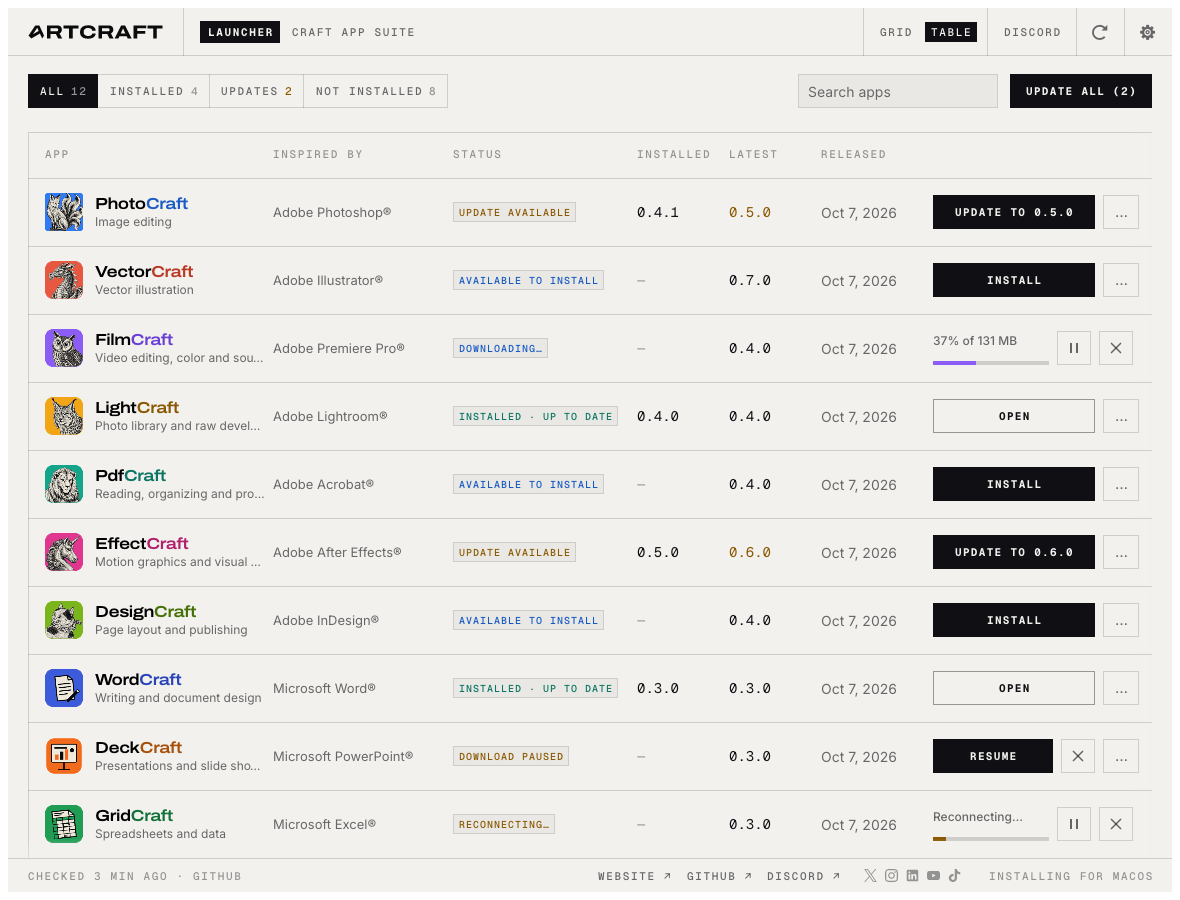
Launcher shows installed apps, versions and available updates. Close an app before updating it, then reopen it when the update completes.
The Table view gives a compact way to scan the app list and update status.