 Craft Apps Guide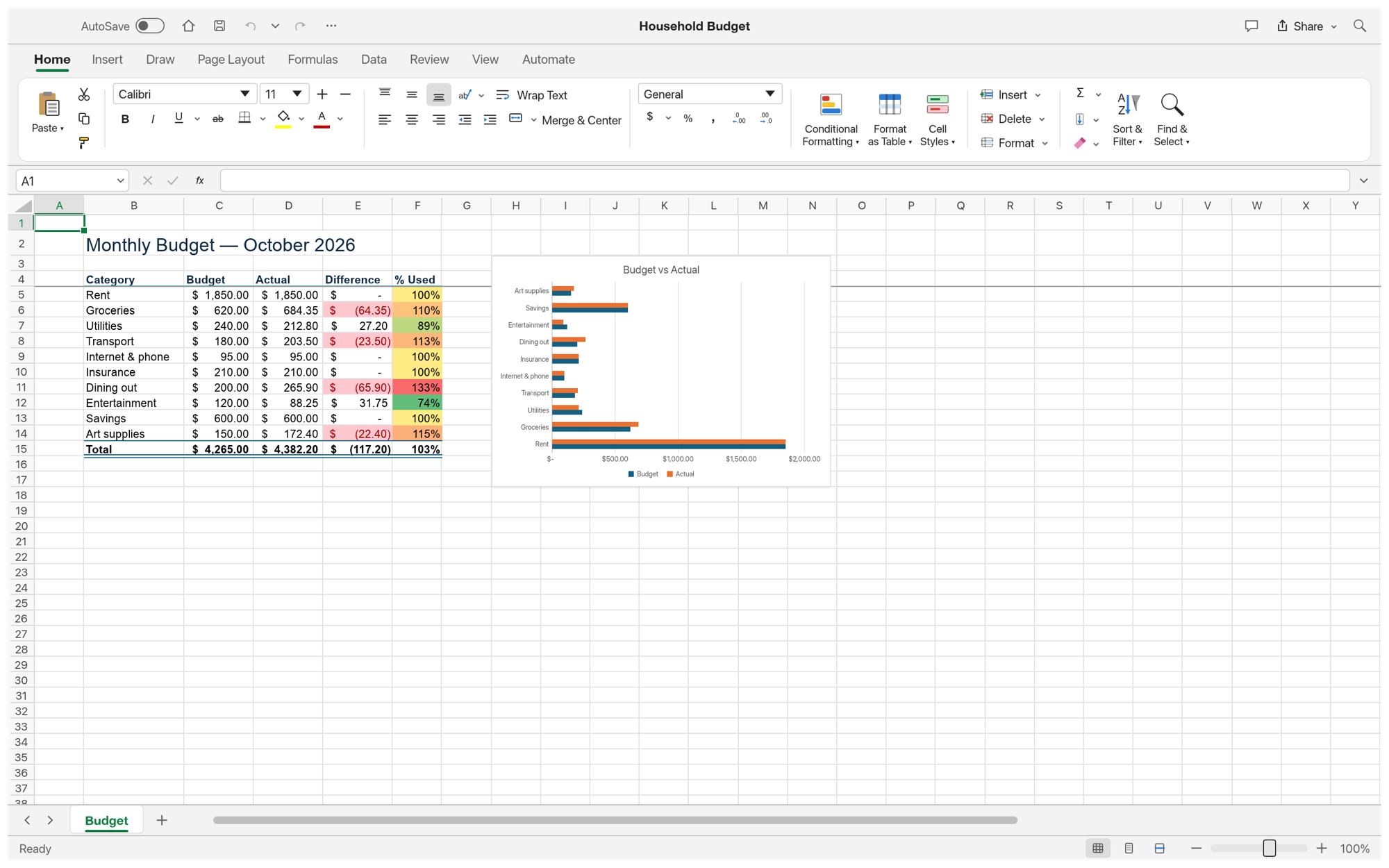
Build a Budget
Use a grid, number formats and conditional formatting to track totals.
GridCraft is a free, open-source spreadsheet application from the ArtCraft team. It brings familiar spreadsheet editing, formulas and charts to a Rust-based app. Keep a copy of important XLSX workbooks and inspect the result after editing.
Free · Open Source · In Development
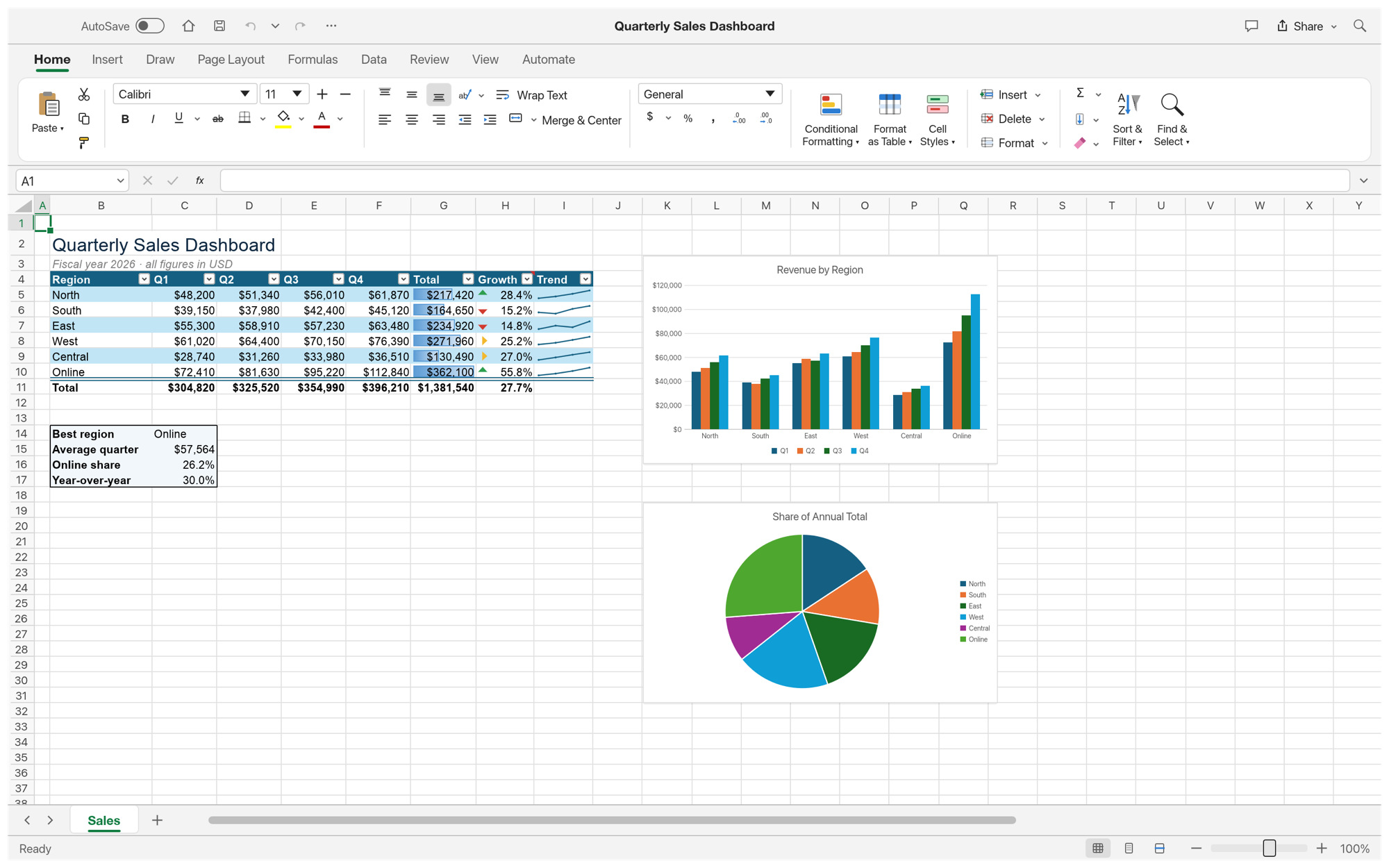
Official project screenshot
| What matters | GridCraft | Microsoft Excel |
|---|---|---|
| Cost | Free and open source | Paid Microsoft plan or licence |
| Platforms | Desktop and web builds documented | Desktop and web products |
| Formulas | Formula bar and 500+ functions documented | Established formula workflow |
| Charts & PivotTables | Charts and PivotTables documented | Mature chart and pivot tools |
| XLSX files | Reads and writes .xlsx; inspect complex files | Native Excel format |
| Macros & add-ins | Do not assume VBA/add-in parity | VBA and add-in ecosystem |
| Development stage | In development | Established product |
For an important workbook, keep the original and check formulas, formatting and charts in a saved copy.
Use a grid, number formats and conditional formatting to track totals.
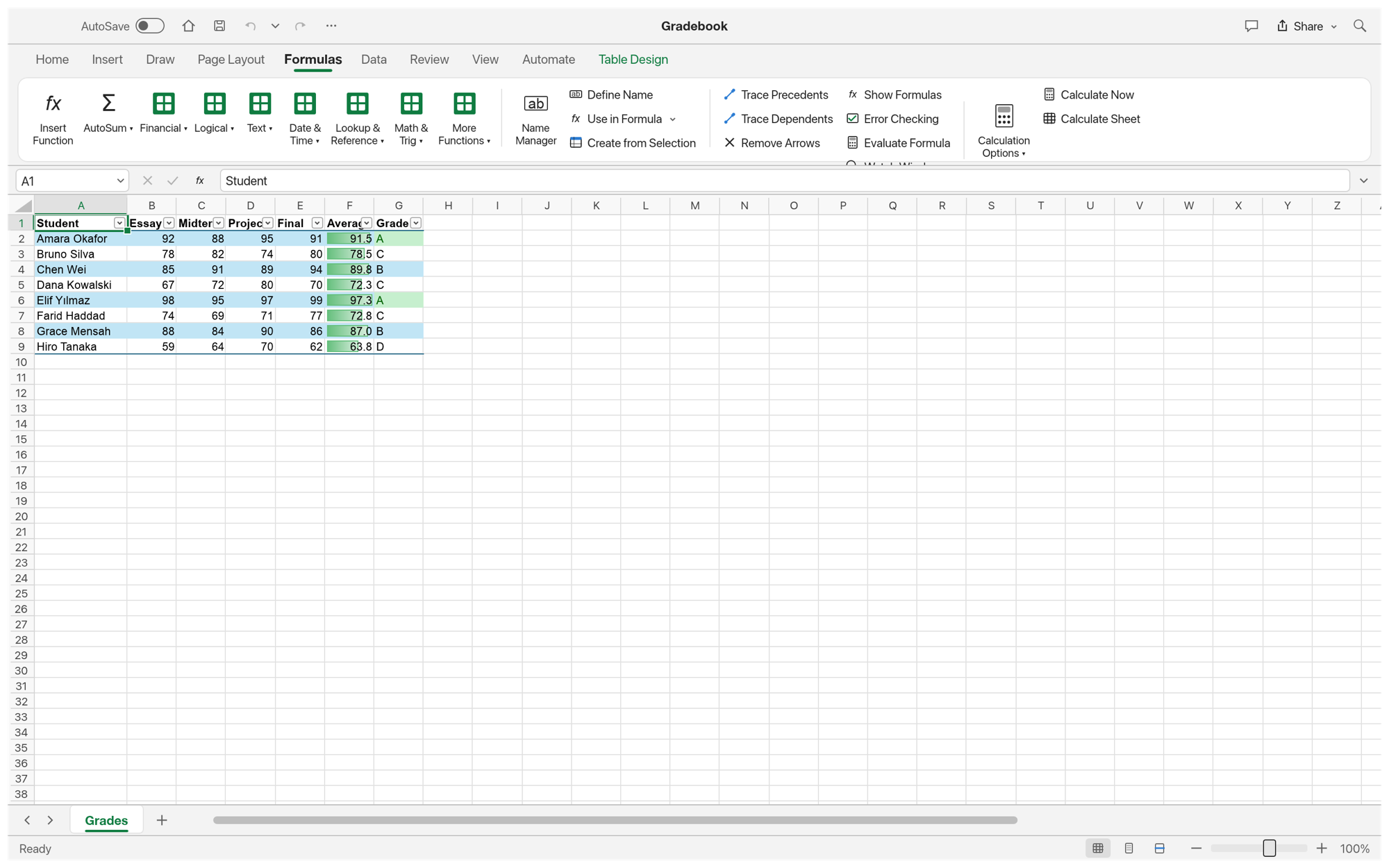
Use the formula bar and calculation functions in a workbook.
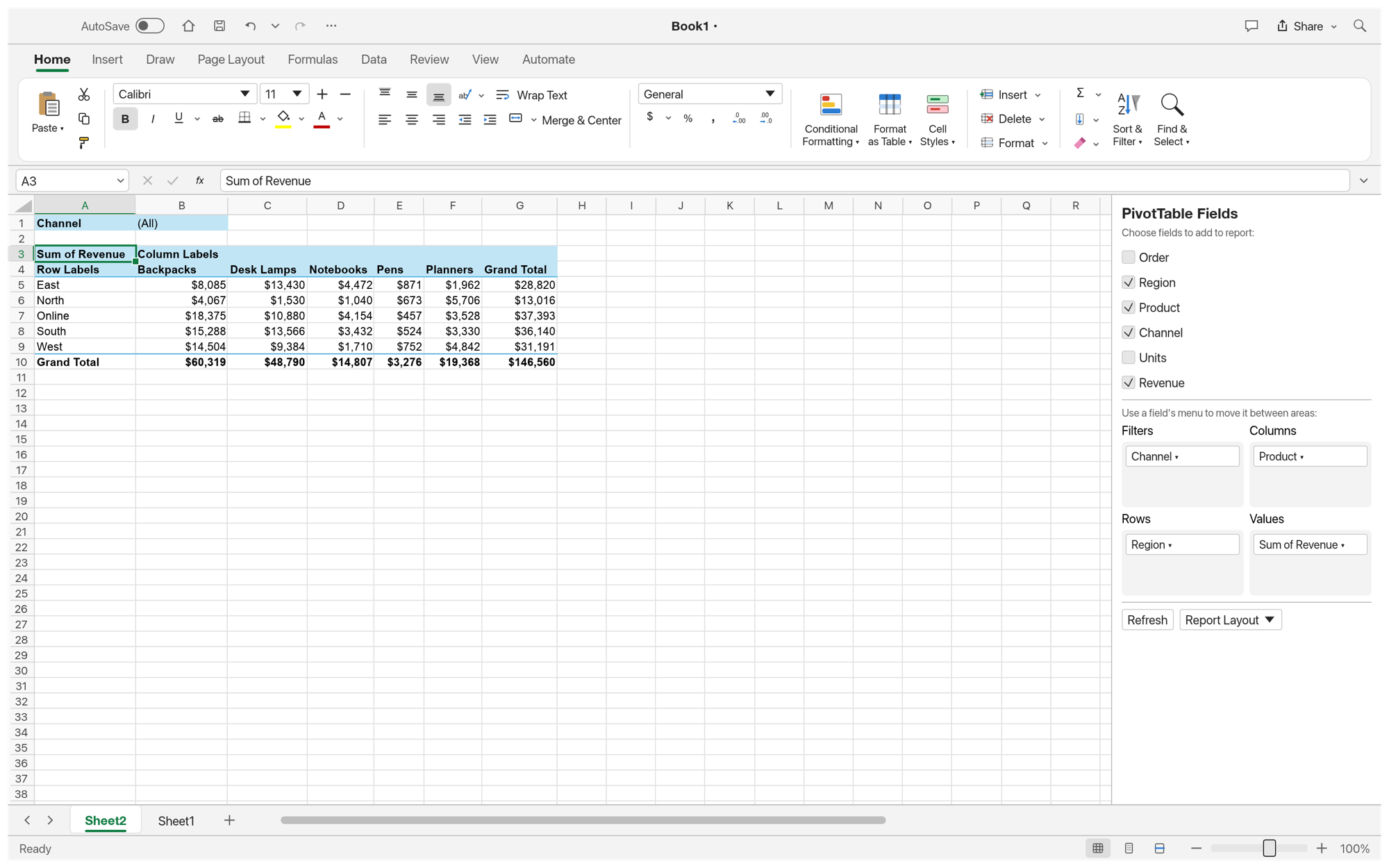
Explore PivotTables, charts and reporting views.
GOAL Make a simple income and expense budget, calculate totals and save an editable workbook.
Start a blank sheet and name it Budget.
A new sheet is ready for data.
Add categories and amounts in separate columns.
Each amount is in a numeric cell.
Use SUM for income and expenses.
Totals change when source cells change.
Apply currency formatting and a clear header.
The budget is readable at a glance.
Save an .xlsx copy, then open that copy again.
Formulas and formatting remain visible.
| Workbook area | What to check |
|---|---|
| Simple tables | Open, edit and save a copy |
| Formulas | Inspect results after reopening |
| Charts | Check data ranges and appearance |
| PivotTables | Review fields, filters and totals |
| Macros / add-ins | Do not assume Excel automation transfers |
After importing, inspect the saved copy and reopen it. Check formula results, chart data ranges and formatting.
Use the official release page and check a saved copy before changing an important workflow.