 Craft Apps Guide
Keep the source
Work on a legal copy, preserving the original PDF.
CHECK
A clean fallback remains available.
PdfCraft completed page reordering, a highlight comment and interactive form filling on our small PDF sample. That supports a trial for routine local PDF tasks; it does not establish parity with Acrobat’s advanced conversion, OCR or signing workflows.
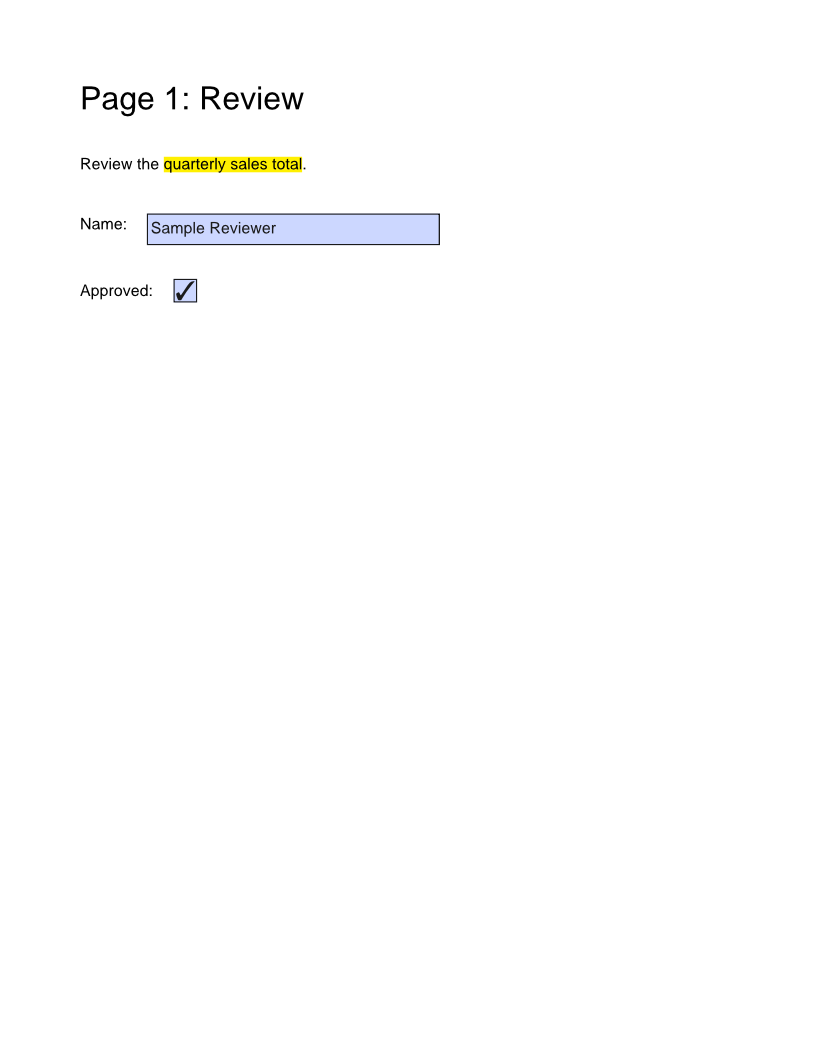
Official PdfCraft CLI 0.9.0 on macOS 27.0.1 Apple Silicon processed a self-created two-page PDF with a reviewer text field and approval checkbox. The script filled both fields, highlighted a phrase with a comment, moved the appendix before the review page, saved a new PDF and reopened it. Independent pypdf inspection confirmed page order, canonical form values and three annotations on the review page.
| Task | PdfCraft evidence | Acrobat evidence / decision |
|---|---|---|
| Reorder pages | Appendix moved to page 1; saved/reopened output checked. | Adobe documents Organize pages; use the app your downstream workflow accepts. |
| Review comments | Phrase highlight and comment persisted. | Acrobat documents commenting; compare replies and appearance in your recipient’s viewer. |
| Interactive form | reviewer=Sample Reviewer and approved=/Yes retained in form tree. | Acrobat documents forms; our sample was not run in Acrobat. |
| OCR | Not tested here; no OCR pass claimed. | Adobe documents OCR for scanned PDFs; test accuracy on your scan. |
| Certificate digital signature | Not tested here. A drawn/electronic signature is not this task. | Use a workflow that validates certificates and signature integrity. |
| Office conversion / complex fidelity | Not tested on this sample. | Adobe documents export; verify resulting layout rather than assume equivalence. |
Work on a legal copy, preserving the original PDF.
A clean fallback remains available.
If this fails: Do not edit a signed original without understanding signature invalidation.
Keep: sample-review.pdf
Fill a field, save and reopen; confirm both displayed appearance and actual field value.
Text and checkbox state agree.
If this fails: If only appearance changes, do not treat the form as correctly filled.
Keep: sample-review-edited.pdf
Inspect the reordered pages and annotation placement.
The comment stays with the intended content.
If this fails: If page references or widgets move incorrectly, revert and isolate the failing edit.
Keep: reviewed output
Official sources checked 20 October 2026. Test results are limited to the versions, environment and files stated above.