Build the first part
1Create a millimetre design and three parameters
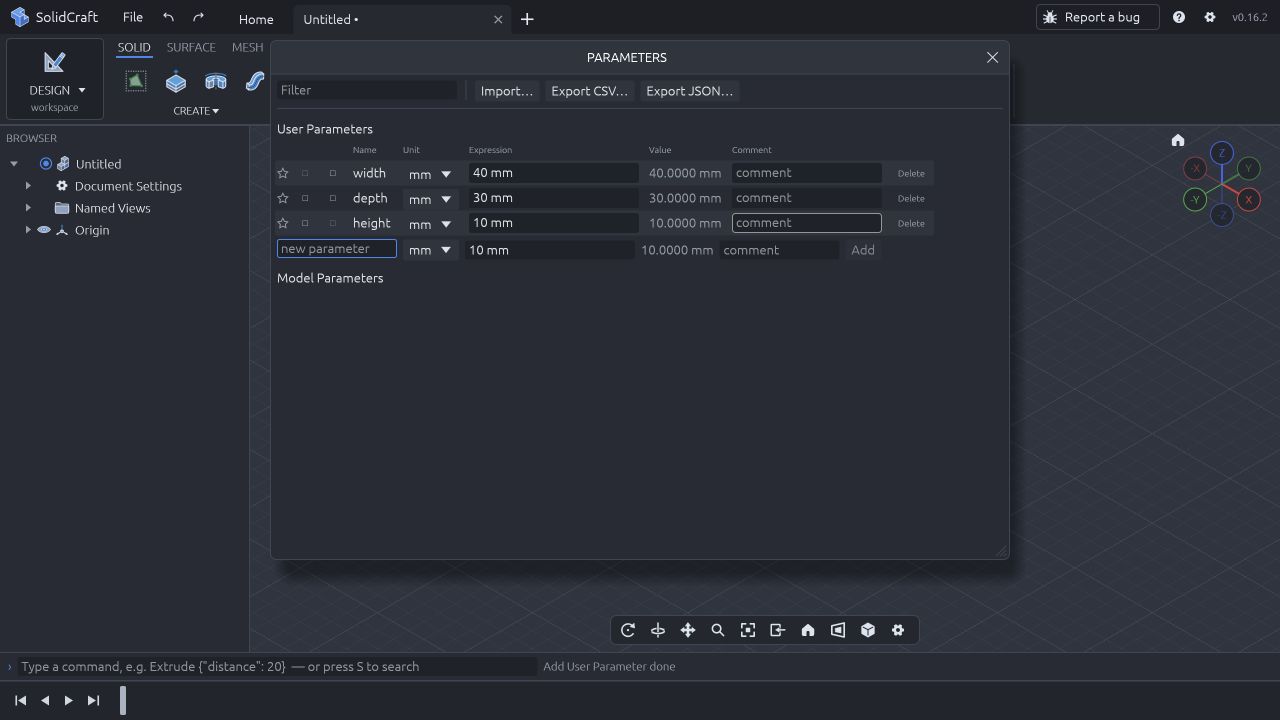
Open the official desktop build and choose File → New. In the left browser, expand Document Settings and choose mm. In SOLID → CONFIGURE → Parameters, add width = 40 mm, depth = 30 mm and height = 10 mm; press Enter to add each entry. If autocomplete is open, accept the suggestion first and then commit the field.
CHECKThe parameter editor lists three named lengths and the design uses millimetres.
If this fails: If an entry stays editable, fix its expression or unit. Do not continue with a rejected parameter.
Keep: An unsaved native design with width, depth and height parameters.
2Make an XY sketch with a centered rectangle
Choose Create Sketch and select the XY origin plane in the view or its browser row. In the SKETCH Create panel, choose the centre rectangle variant. Click the origin for its centre, then click a corner to create a rough rectangle. Keep the horizontal/vertical relations; this outline must be closed and must not be construction geometry.
CHECKA closed four-sided profile lies on XY, with its centre attached to the origin. Its exact width and depth are set next.
If this fails: If its centre can still move, apply Coincident between the rectangle centre and origin. If the outline does not shade as a profile, inspect endpoints and construction status.
Keep: Editable centered rectangle sketch.
3Dimension the sketch with the named parameters
Use Sketch Dimension (D), select a horizontal rectangle edge and place its dimension; enter width. Dimension an adjacent vertical edge and enter depth. Press Enter to apply each expression. Inspect the sketch constraint status before choosing Finish Sketch.
CHECKThe expected outline is 40 × 30 mm. In our equivalent engine fixture the sketch solved with zero remaining degrees of freedom.
If this fails: Blue geometry or a remaining free degree of freedom needs a missing relation; a solver conflict needs a duplicate or contradictory constraint removed. Do not fix the whole sketch merely to conceal a missing dimensional relation.
Keep: A dimensioned, constrained sketch linked to width and depth.
4Extrude the profile and check its size
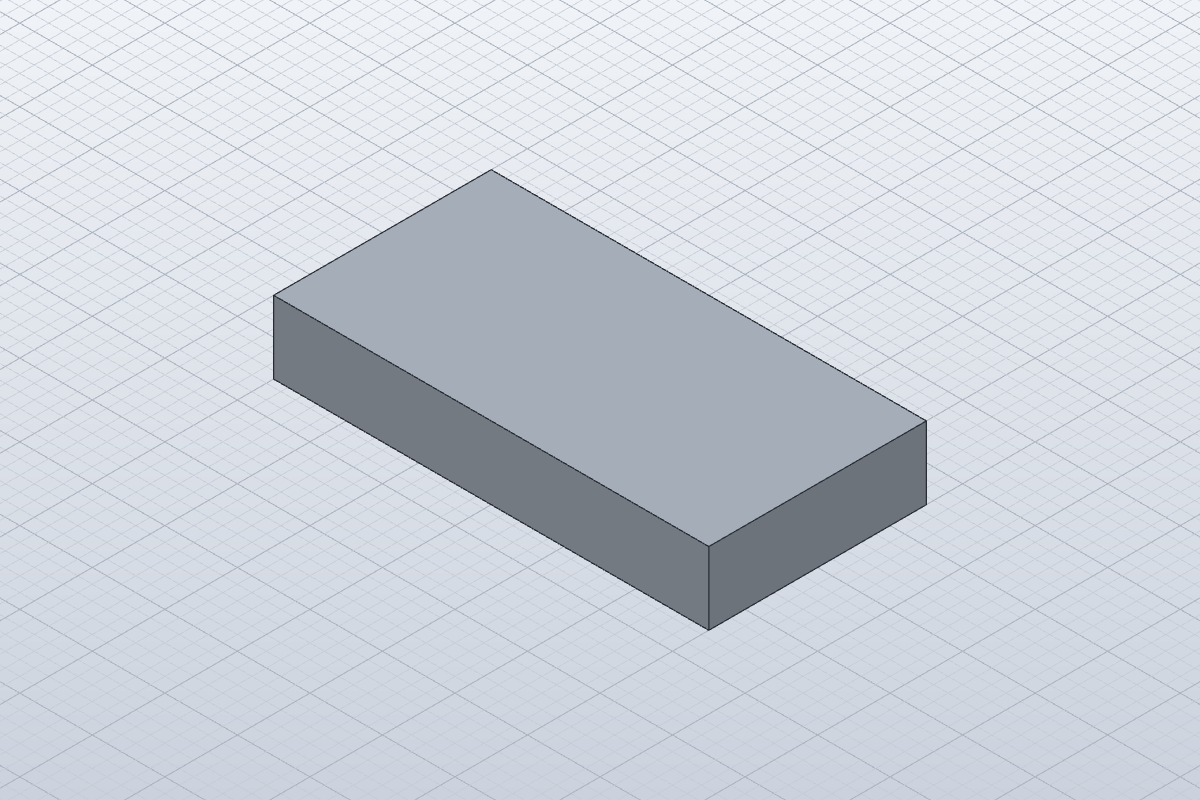
After Finish Sketch, select the filled rectangle profile. In SOLID → Create choose Extrude (E). Use a one-sided distance of height and the New Body operation, then confirm the dialog. Rename the body GuidePlate in the browser if desired. In Inspect → Measure, select the relevant edges to check width, depth and thickness.
CHECKOne body measures 40 × 30 × 10 mm. The independently checked engine body has six faces and volume 12,000 mm³; multiplying the three dimensions provides a simple comparison.
If this fails: If no profile is selectable, return to the sketch and close the outline. If the body joins existing geometry, use a fresh design or explicitly select New Body.
Keep: Native sketch and extrusion timeline.
5Change width and verify the rebuilt part
Return to SOLID → CONFIGURE → Parameters (Change Parameters). Change width from 40 mm to 60 mm and commit with Enter. The timeline rebuilds from the first dependent feature. Use Inspect → Measure again and check the sketch and extrusion for errors.
CHECKWidth becomes 60 mm while depth remains 30 mm and height 10 mm. Our engine rebuilt both features and measured volume 18,000 mm³.
If this fails: If nothing changes, check that the sketch dimension contains the expression width rather than a fixed number. If rebuild reports an error, correct the failing expression or sketch before exporting.
Keep: The updated editable design, including its parameters and two features.
6Save, close and reopen the native design
Choose File → Save As and save plate.solidcraft in a test folder. Close that design tab, then choose File → Open and reopen plate.solidcraft. Check the Parameters panel, sketch and timeline, then repeat the three edge measurements.
CHECKThe reopened design retains the editable parameters and two features; its dimensions are 60 × 30 × 10 mm. Our equivalent native reopen retained volume 18,000 mm³ without errors.
If this fails: If the reopened file is an imported body or mesh, you opened an exchange copy. Reopen the .solidcraft file to keep the parametric history.
Keep: plate.solidcraft, kept as the editable source.
7Export separate exchange copies
Use File → Export for a STEP copy and an STL copy. Keep the native file. Open each export as a separate new design with File → Open and inspect its extent and visible shape; return to the native tab for further parameter edits.
CHECKOur STEP and STL exports reimported into SolidCraft. The sample STL has twelve triangles. STEP is an exchange solid and STL a mesh; neither keeps the original editable sketch history.
If this fails: If scale or shape differs, check units and export settings before sharing. Same-app reimport does not verify a manufacturing, printing or third-party CAD workflow.
Keep: plate.solidcraft plus separate plate.step and plate.stl copies.
 Craft Apps Guide