 Craft Apps Guide
Start a metric session
Launch cadcraft-cli mcp. In your client call new_drawing with {"metric":true}.
CHECK
A new drawing is available in the headless session.
Use CADCraft MCP to draw a small 2D example, then inspect entities and reopen the saved DXF. The checks below separate an actual file result from an AI assistant’s description of success.
Tested 20 October 2026 on macOS 27.0.1 arm64 using the official universal CLI release. Fixtures were created for this guide. These are real headless engine and stdio MCP tests; manual desktop interaction and authenticated model-driven generation were not tested. A separate real Claude Code 2.1.304 mcp list health check connected to both servers.
Install the official CADCraft CLI; the tested version is 0.8.0. A documented client configuration is {"mcpServers":{"cadcraft":{"command":"cadcraft-cli","args":["mcp"]}}}. Use the full binary path if it is outside PATH. The drawing operations were executed with a direct MCP client. Separately, Claude Code 2.1.304 connected to this server through its real mcp list health check; no model request or sign-in was performed.
Headless mode owns a separate drawing. To inspect a visible app, follow the official --control and mcp --connect instructions; never assume an open drawing and headless drawing are the same.
We installed the official Claude Code 2.1.304 native package locally and verified its SHA-512 against npm registry metadata. In a separate task-owned project, .mcp.json used the full path to each official CLI and its mcp argument. The initial health check reported Pending approval; after explicitly allowing only cadcraft and solidcraft through the command’s per-server settings, claude mcp list reported Connected for both. This verifies client/server connectivity, not authenticated AI modeling.
For your own project, review the local executable paths and file access before approving the servers in Claude Code. Use claude mcp list to check their health; if they remain Pending approval or Failed to connect, resolve that state before asking the model to operate the app.
Launch cadcraft-cli mcp. In your client call new_drawing with {"metric":true}.
A new drawing is available in the headless session.
If this fails: If the executable is not found, use its full local path. For a live app use the documented --connect host:port option; do not assume it edits the open window.
Keep: New drawing in memory
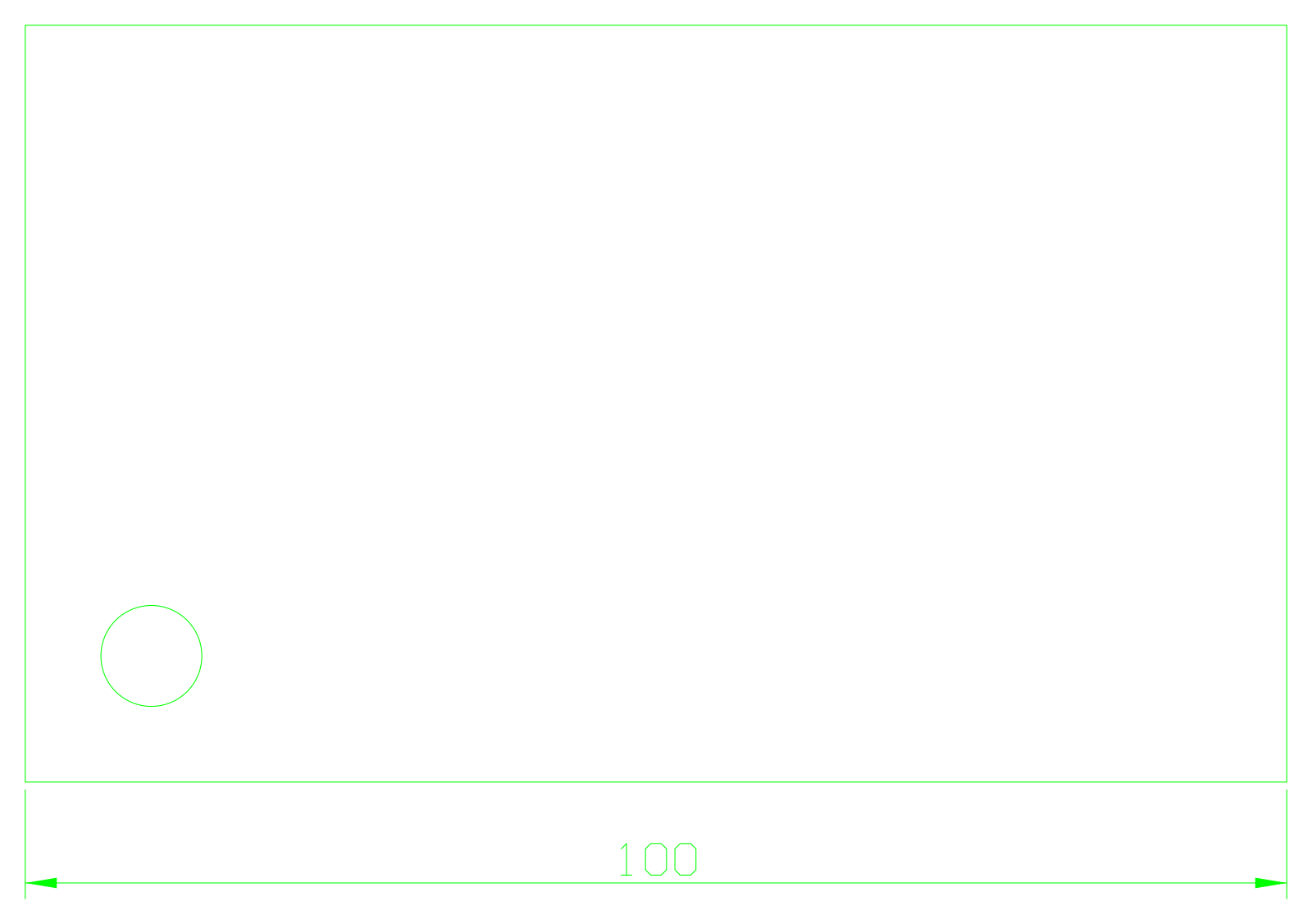
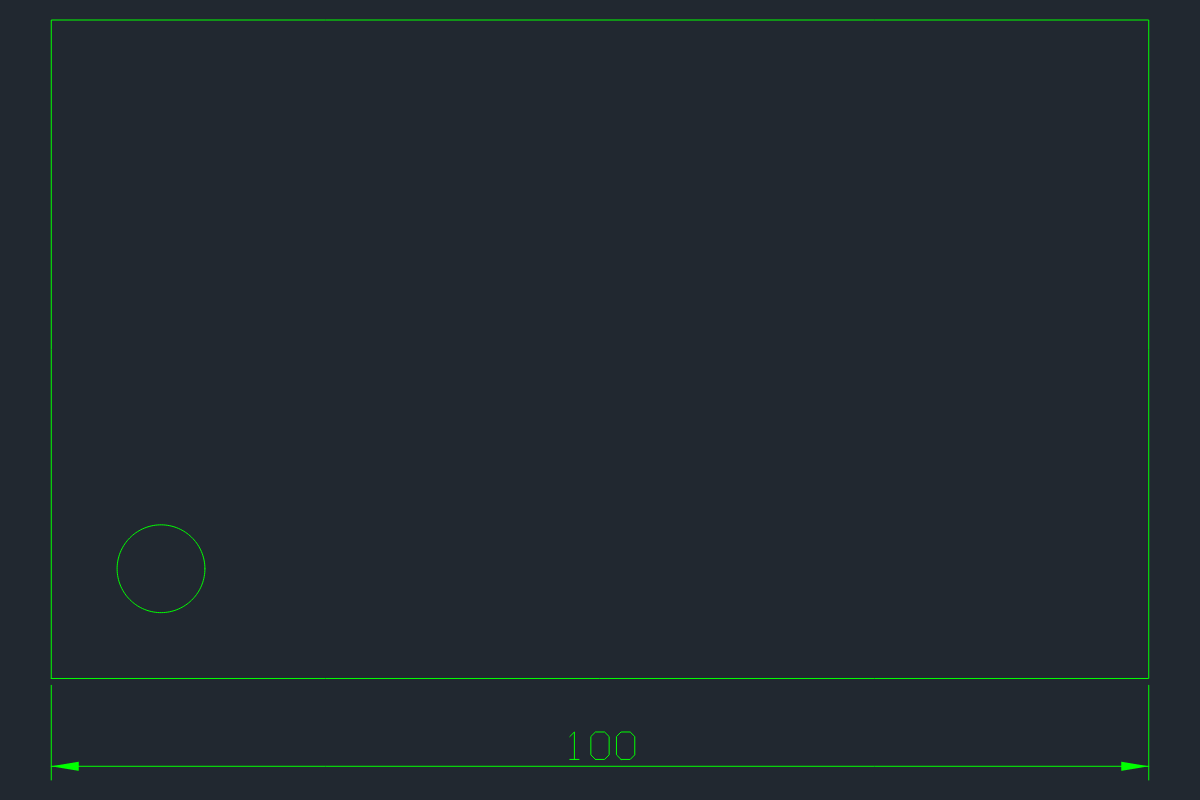
Call execute with command layer.new and params {"name":"OUTLINE","color":"green","current":true}. Then command_line {"text":"rectang 0,0 100,60"} and execute circle with center [10,10], radius 4.
A closed rectangle and one circle on OUTLINE.
If this fails: Use list_commands to read the installed command schema; cancel an unfinished prompt before retrying.
Keep: Drawing in memory
Call command_line {"text":"dimlinear 0,0 100,0 50,-8"}, then inspect_drawing {"entities":true}.
One polyline, one circle and one dimension. The dimension value is 100; rectangle bounds are 0–100 by 0–60.
If this fails: Compare coordinates and geometry, not a model’s success message. Fix a wrong command before saving.
Keep: Inspection JSON
Call save with an absolute .dxf path, save again to .svg for export, and render. Start another drawing, open the saved DXF and inspect it.
Our DXF reopened with the same three entity types and no warnings; the SVG and render show the 100 dimension.
If this fails: Retain the original. If entities or dimensions differ, stop the exchange and compare the inspection output.
Keep: plate.dxf, plate.svg and a PNG render
The self-created metric sample passed its limited DXF save/reopen check in CLI 0.8.0. It is a drafting sample, not a 3D part, and no DWG round trip was tested.
Read list_commands and the actual returned error. An invalid MCP argument is different from a command that runs and fails. Cancel an incomplete command before drawing again; use inspect_drawing to reconcile the current state before repeating changes.
Official sources checked 20 October 2026. Test results are limited to the versions, environment and files stated above.